
How to Activate Claude in Excel in 10 Seconds
2026-08-13
I still see the question pop up regularly: "how do I install Claude in Excel?" The answer fits in one sentence: you don't really install it, you activate it. Claude is already listed in the Office Add-ins Store, right next to every other Microsoft module. Three clicks, and you're done.
One condition to know before you start: you need a paid Claude subscription (Pro, Max, Team, or Enterprise). The free plan doesn't unlock the Excel add-in yet — Anthropic hasn't opened that door.
Step 1: open the Add-ins tab
In the Excel ribbon, under the Home tab, all the way to the right: the Add-ins group. Click it.
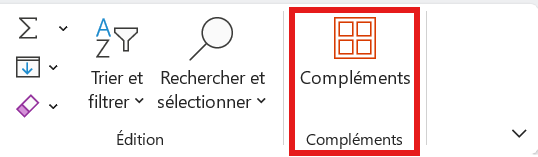
Step 2: search "Claude" and click Add
The Office Add-ins store opens. Type "claude" into the search bar. Two official results show up at the top: Claude for Microsoft 365 and Claude by Anthropic for Excel. Both come from Anthropic — pick whichever you like, they give access to the same add-in. Click Add.
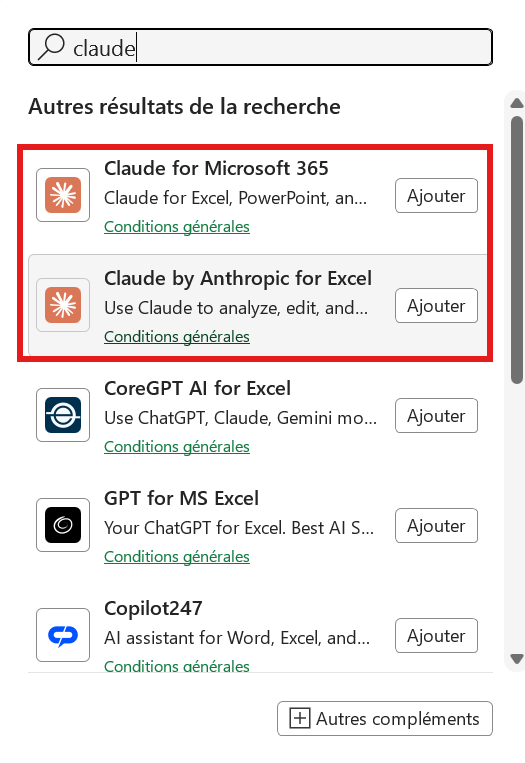
Step 3: Claude shows up in your ribbon
Back in Excel: a new Claude tab appears right next to Add-ins. Click it to open the chat panel, sign in with your Claude account, and you're set.

What's next?
If you want the full picture — compatible versions, supported plans, limits to know before you dive in — I covered all of that in the complete Claude for Excel installation guide. And if you're after prompts that actually work on your spreadsheets, the Excel prompt library is built for that.
That's activation done. The rest is between you and your spreadsheets.